[ fcp://@fc.onlinehelp.com,%237600229/En/OnlineHelp/Web%20Help/LW2 ]Contents [ fcp://@fc.onlinehelp.com,%237600229/En/OnlineHelp/Web%20Help/LW31 ][Image:81203_43854_21.png][ fcp://@fc.onlinehelp.com,%237600229/En/OnlineHelp/Web%20Help/LW42 ][Image:81203_43840_19.png] [Marker][ fcp://@fc.onlinehelp.com,%237600229/En/OnlineHelp/Web%20Help/LW32#The reading pane ]The reading pane [ fcp://@fc.onlinehelp.com,%237600229/En/OnlineHelp/Web%20Help/LW32#Opening the reading pane ]Opening the reading pane --------------- [Marker]The reading pane When the reading [ fcp://@fc.onlinehelp.com,%237600229/En/OnlineHelp/Definitions/L2018 ]pane is open, it is displayed under or to the right of the main pane. The reading pane displays the contents of any object selected in the main pane. For example, a selected message or document opens in this pane. You can work with objects in the reading pane just as you do when they are opened in the main pane. [ fcp://@fc.onlinehelp.com,%237600229/En/OnlineHelp/Web%20Help/LW32#Top ]Top --------------- [Marker]Opening the reading pane To open the reading pane, click this button: [Image:892006_13851_0.png] This button is only visible if you have the navigation pane open. It [ fcp://@fc.onlinehelp.com,%237600229/En/OnlineHelp/Definitions/L2035 ]toggles through three states. To move the reading pane to the right of the main pane, click this button again. To close the reading pane, click this button a third time. [ fcp://@fc.onlinehelp.com,%237600229/En/OnlineHelp/Web%20Help/LW32#Top ]Top
   
F2032
 
 
Home  •  Help  •  W0  •  Practical Uses for FirstClass  •  101 Uses for FirstClass  •  F2032
81903_22607_2.pngProvide information using your FirstClass web site

Minimum version:
Current Internet Services release; FirstClass 8.3

Audience:
FirstClass administrators

Experience
: 9203_22426_0.png
FirstClass Services used:
             9203_24337_3.pngInternet Services
FirstClass applications used:
                9203_24337_3.pngConferencing
9203_31709_1.png Summary
Want an easy way to provide information to customers? Use a FirstClass conference to post information, and then make the conference available on your FirstClass web site. To update the conference, the controller can simply add or modify documents, and the changes are applied as soon as the document is closed.
9203_31709_1.png Example
Susan Bunting is the FirstClass administrator at Husky Planes. Her sales staff wants to make their Product Notices conference available to customers over the web. To set this up, this is what she does:

Step 1:
She aliases the Product Notices conference to the administrator Desktop, and then moves the conference into the site conference where she wants to make the conference available.
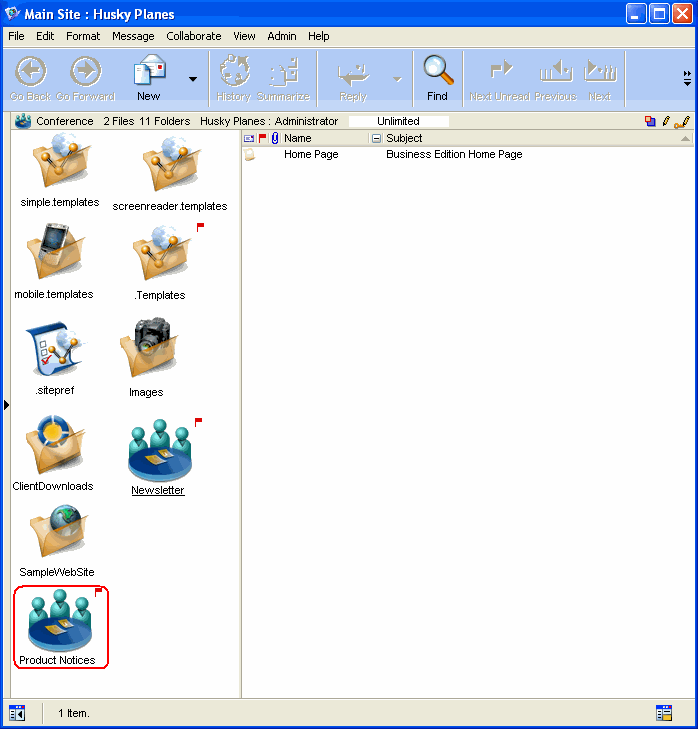
8152006_124440_0.png

81203_42521_14.png Note
FirstClass web sites are located in the WWW conference in the Internet Services folder on the administrator's Desktop.

Step 2:
She permissions the conference so customers do not have to provide authentication credentials:

8152006_124710_1.png
Step 3:
She adds a Product Notices link to the site home page.
Step 4:
She tests the conference on a browser to make sure it is accessible.
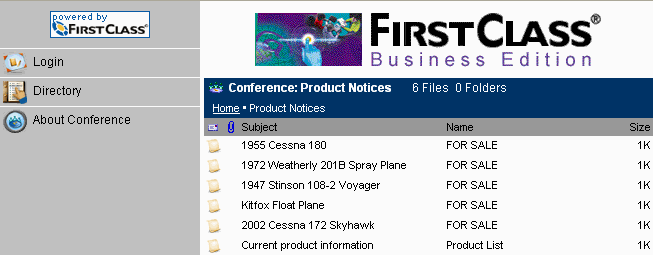
8152006_124959_2.png